
This guide will help you how to Create a Website with AI using the SitePad Website builder
Login in to Control Panel
First, log in to your control panel (e.g., cPanel’s URL will be https://domain.com:2083 ) using your login details. Then click on the SitePad icon or link.
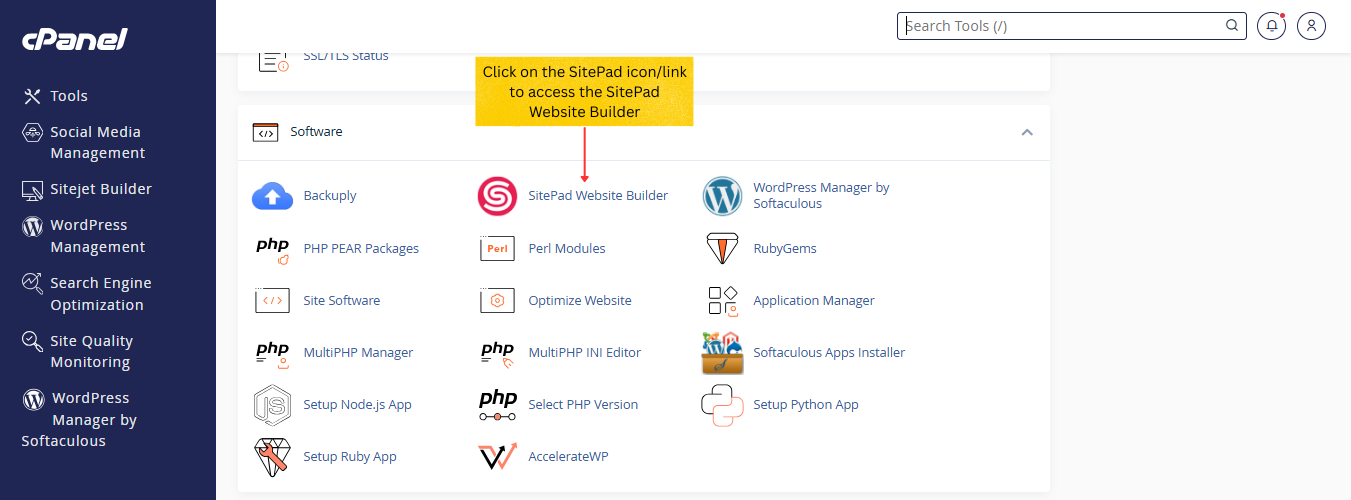
You will be redirected to SitePad Website Manager.
Create New Site
Once you are redirected to SitePad Website Manager. You will need to create a new site.
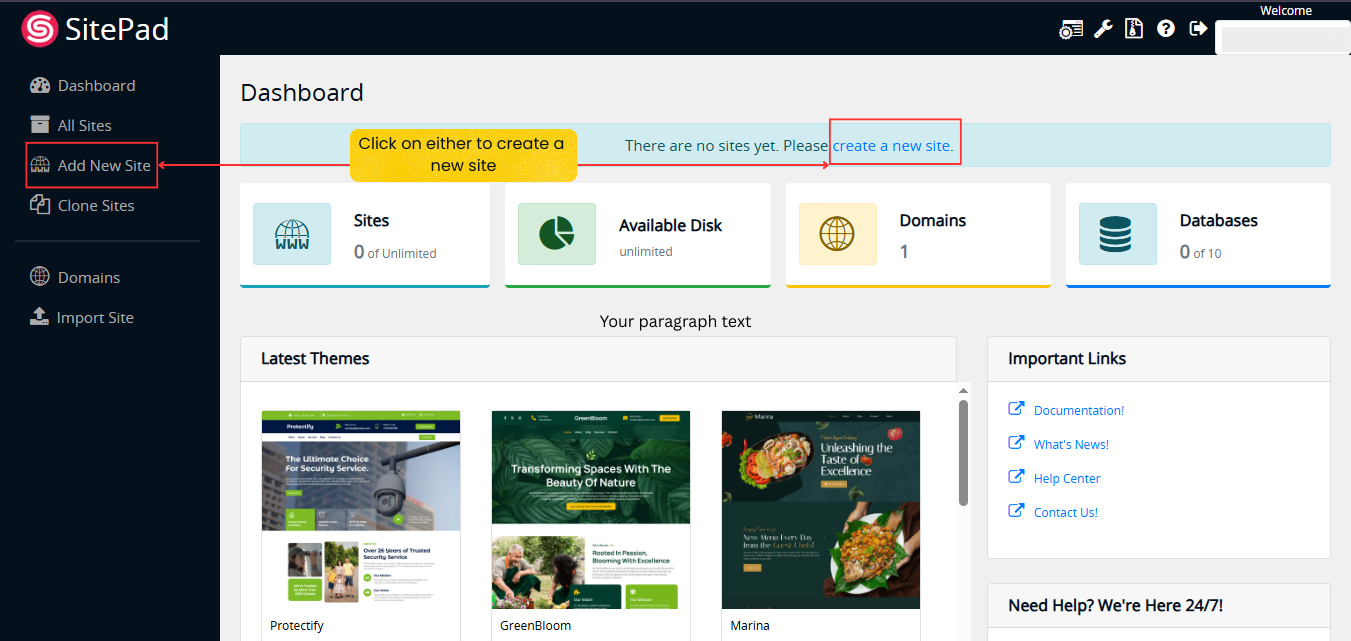
You can click on either option to create a new site.
Once you create a new site, you will be redirected to the onboarding process. To build your website with AI-Generated Templates, enable the Use AI Builder to generate content option. The process includes the following steps:
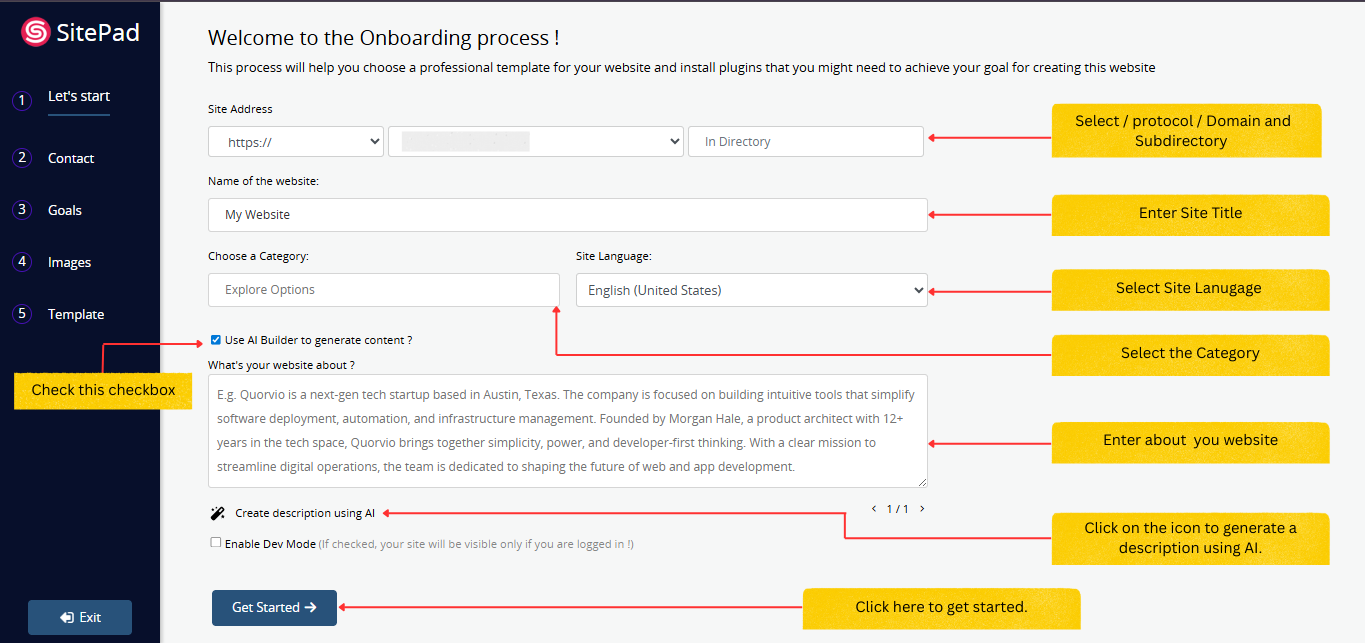
Select the Protocol, Domain, and Subdirectory for your website. Then enter the Name of the website and choose a Category for your website. You can also select the Site Language as per your preference.
Enable the Use AI Builder to generate content option to turn on AI Builder.
Next, enter details About Your Website, or click the AI icon to automatically generate a description.
Click the Get Started button to continue.
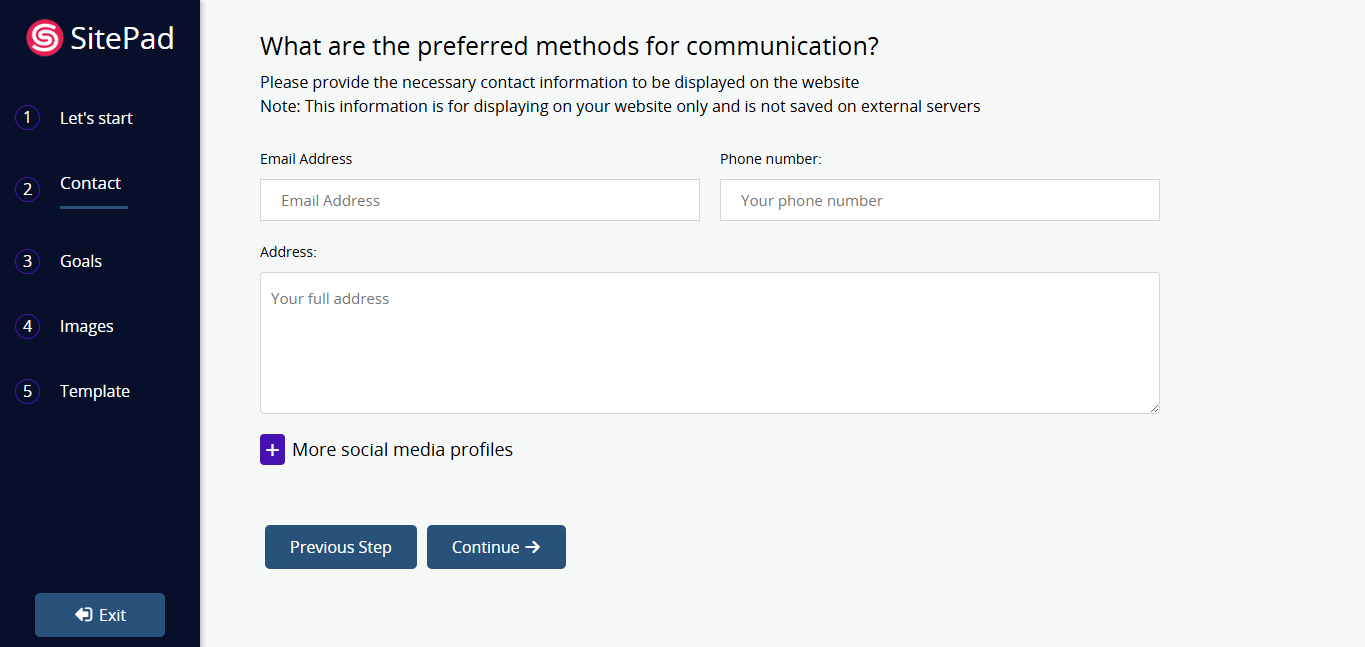
Enter your contact details — Email Address, Phone number, and Address.
You can also add your social media URLs.
Then click the Continue button.
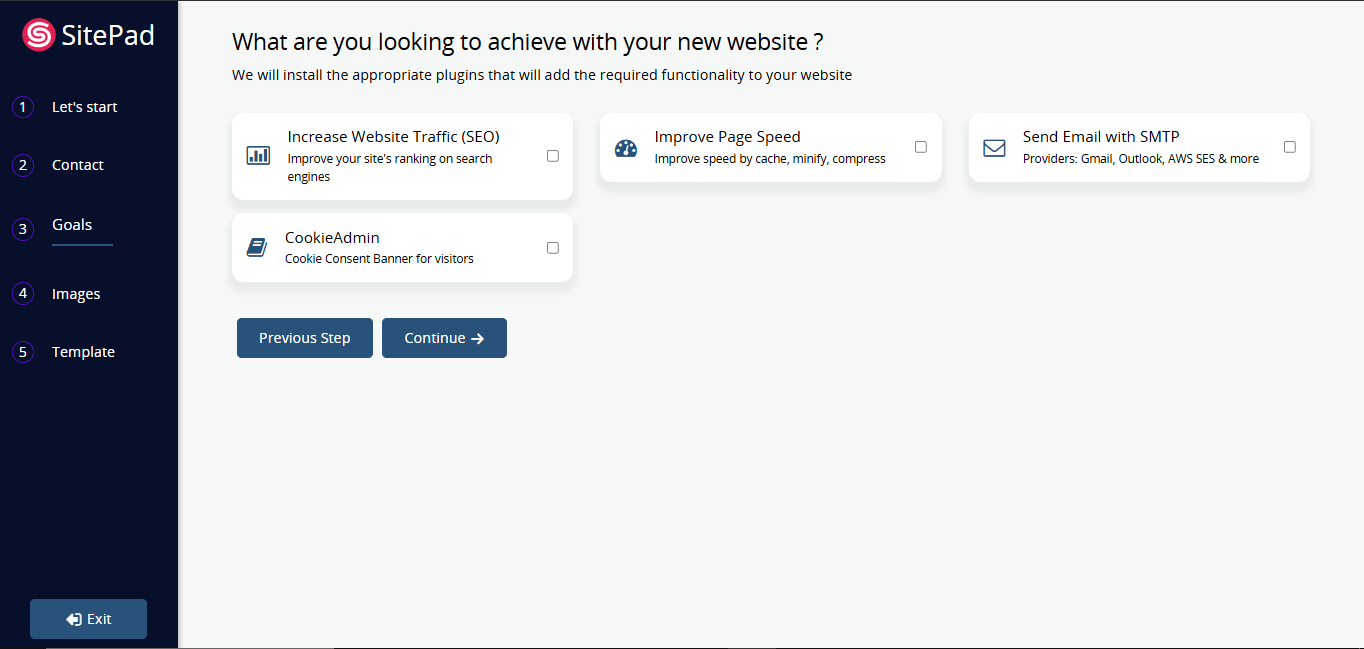
Select the plugins you want to include on your website, and then click the Continue button.
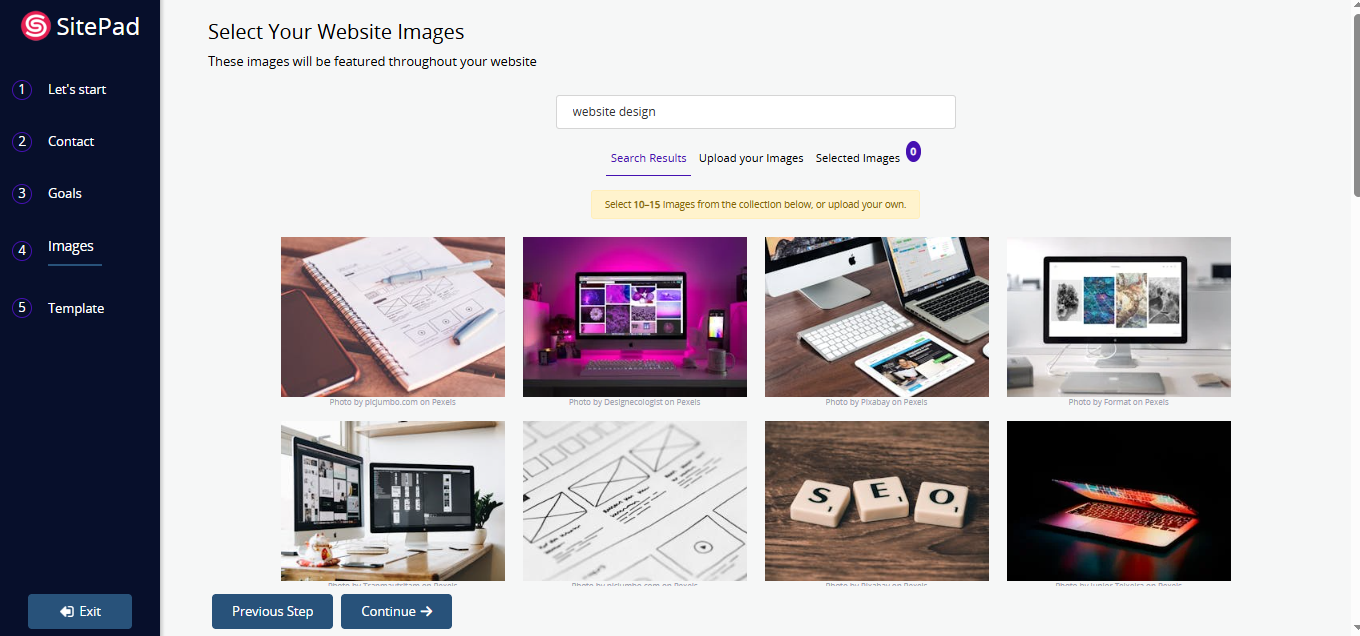
Select the image you want to use on your website. You can search for an image or upload one, and then click the Continue button.
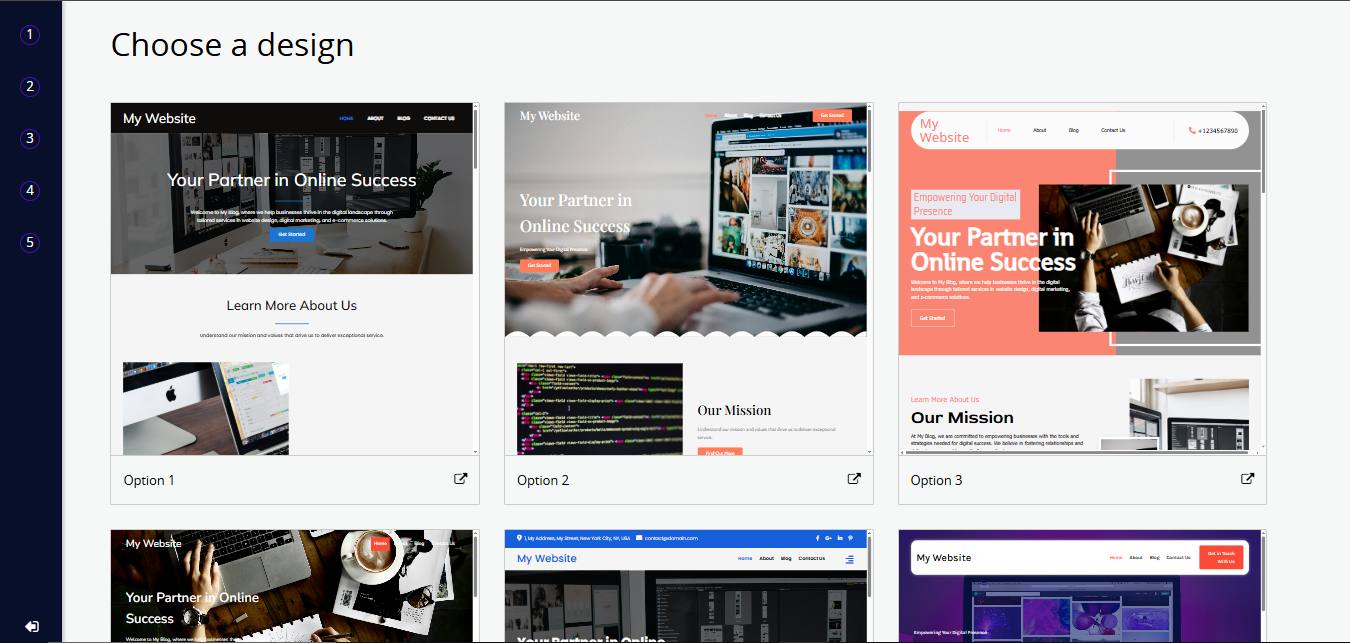
Select the design theme for your website.
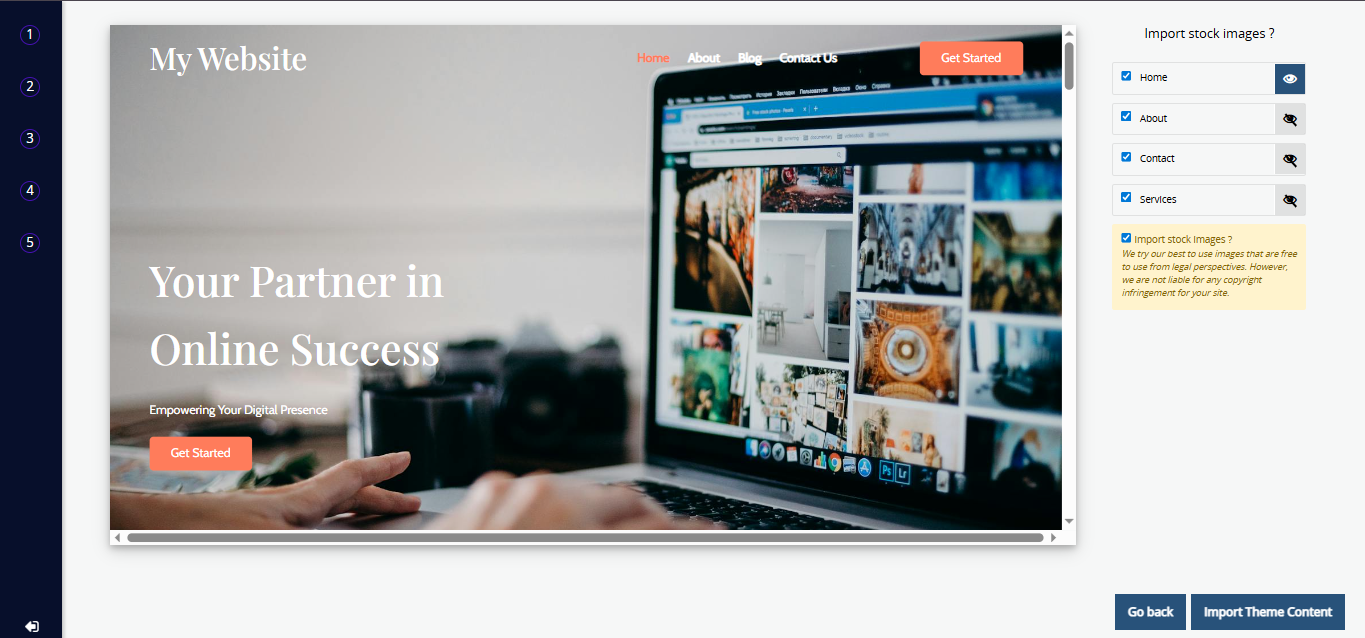
Click on the Import Theme Content button.
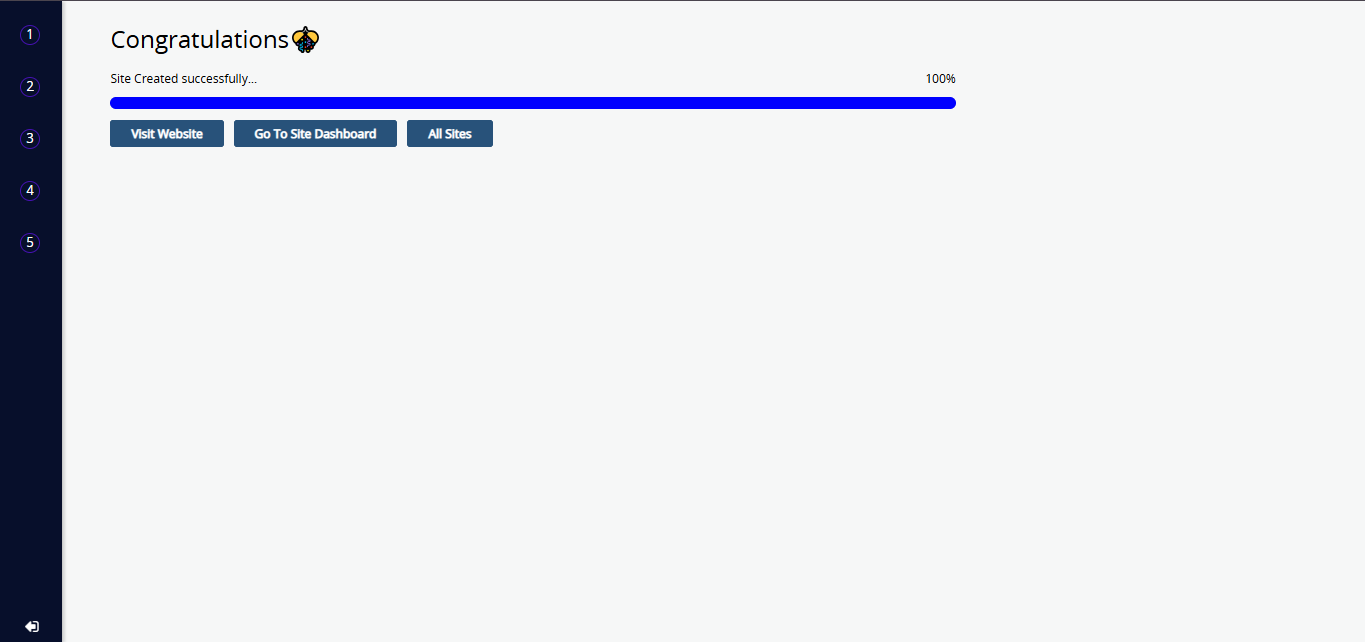
When the progress reaches 100%, your site will be created successfully. This is the final step of the onboarding process. You can click the View Website button to preview your site, use the Go to Site Dashboard button to access the Site admin, or select the All Sites button to view all your sites.
To build your website with Pre-Built Templates, make sure the Use AI Builder to generate content checkbox is unchecked. The process includes the following steps:
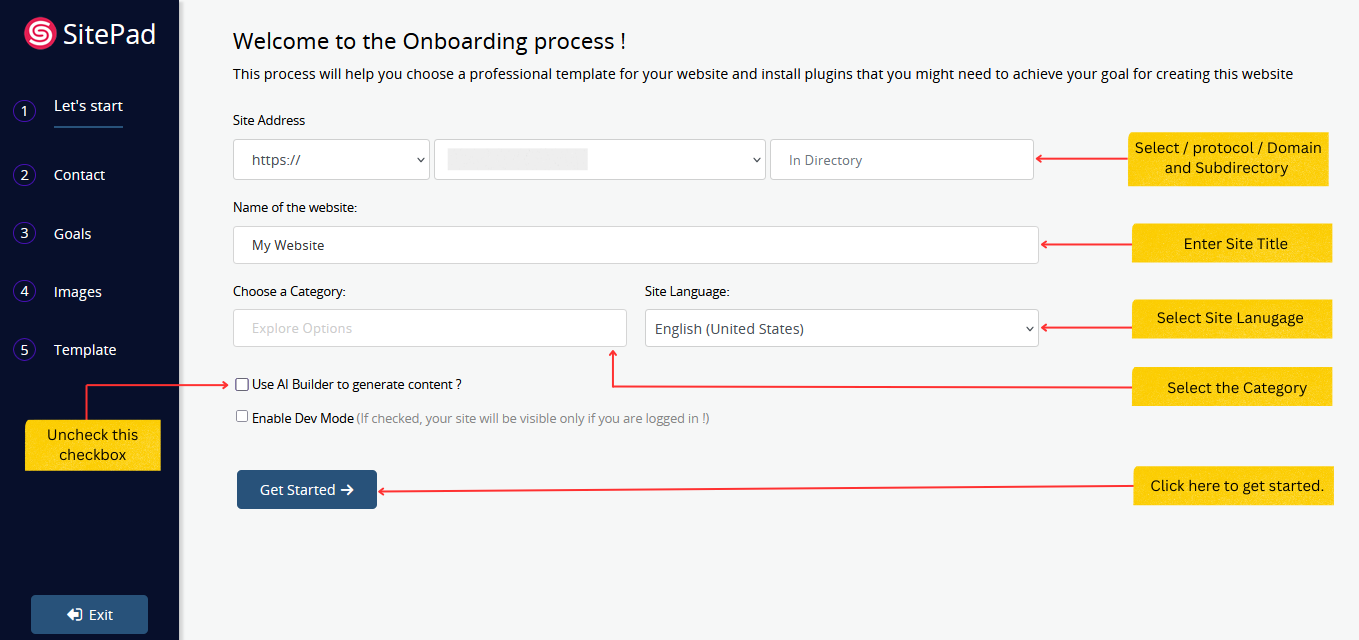
Select the Protocol, Domain, and Subdirectory for your website. Then enter the Name of the website and choose a Category for your website. You can also select the Site Language as per your preference.
Uncheck the Use AI Builder to generate content option to turn off AI Builder.
Click the Get Started button to continue.
Enter your contact details — Email Address, Phone number, and ddress.
You can also add your social media URLs.
Then click the Continue button.
Select the plugins you want to include on your website, and then click the Continue button.
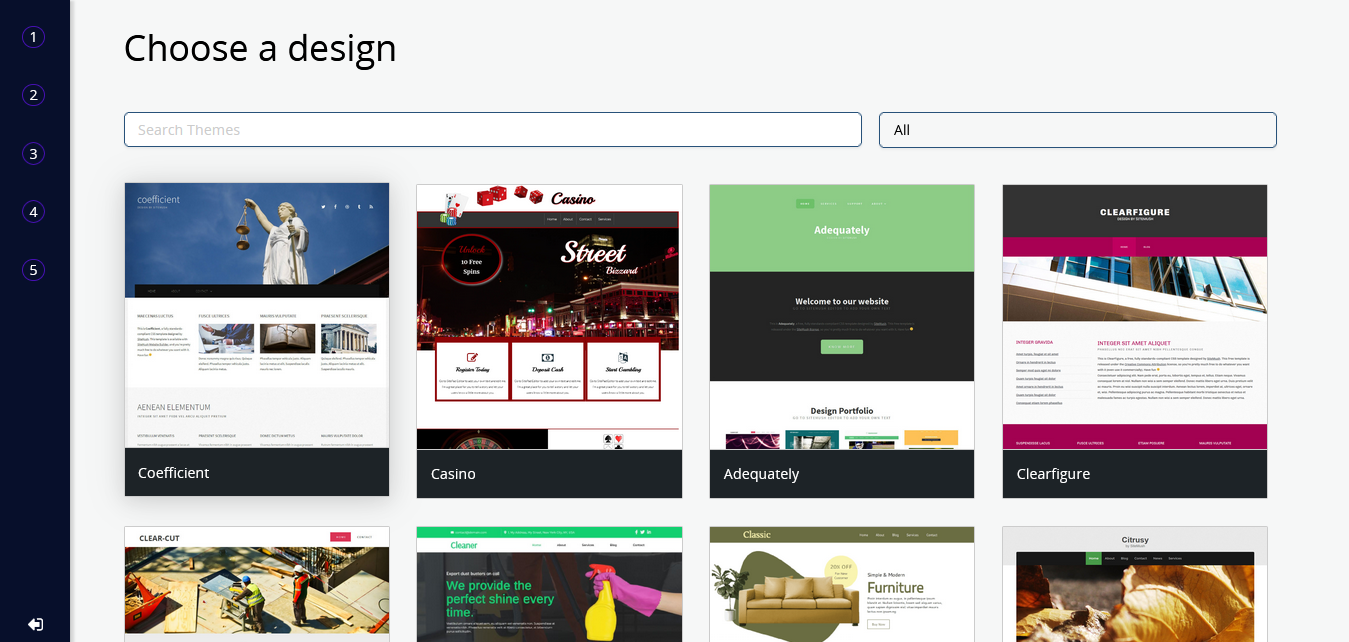
Now you can select the theme for your website
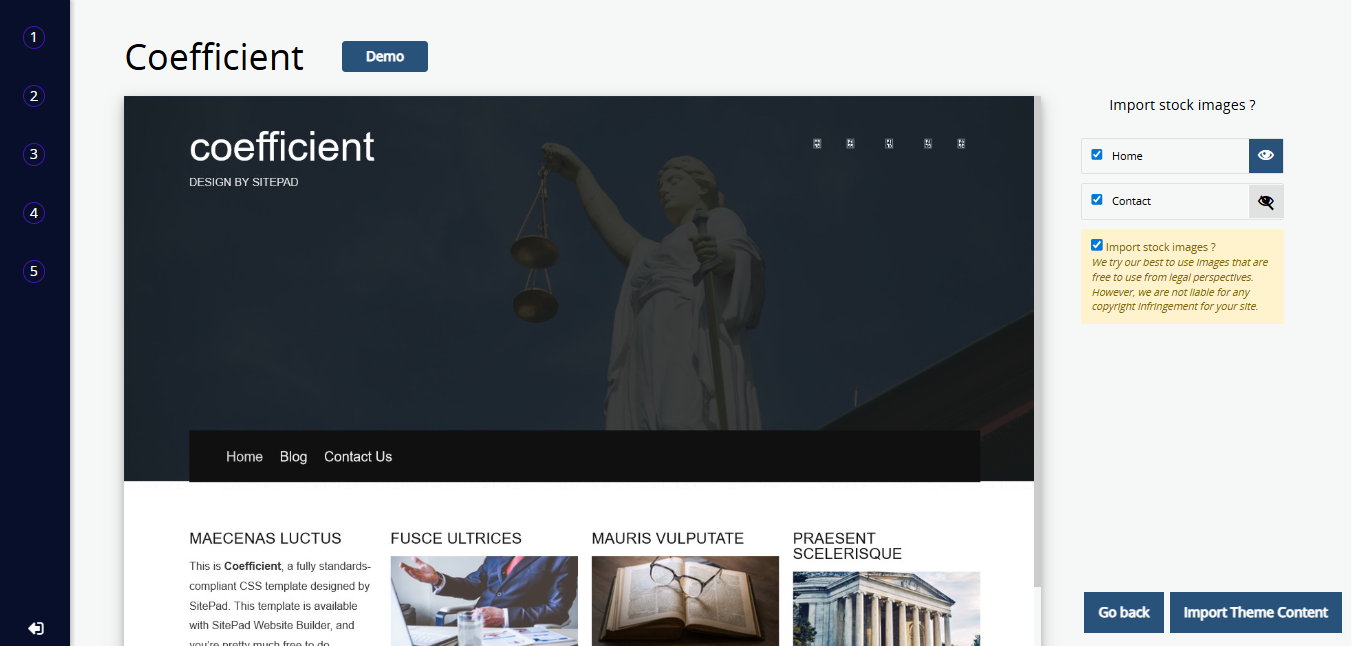
Click on the Import Theme Content button.
When the progress reaches 100%, your site will be created successfully. This is the final step of the onboarding process. You can click the View Website button to preview your site, use the Go to Site Dashboard button to access the Site admin, or select the All Sites button to view all your sites.